For a 6 week game development project with 8 other people I was tasked with doing the UI. This was my process.
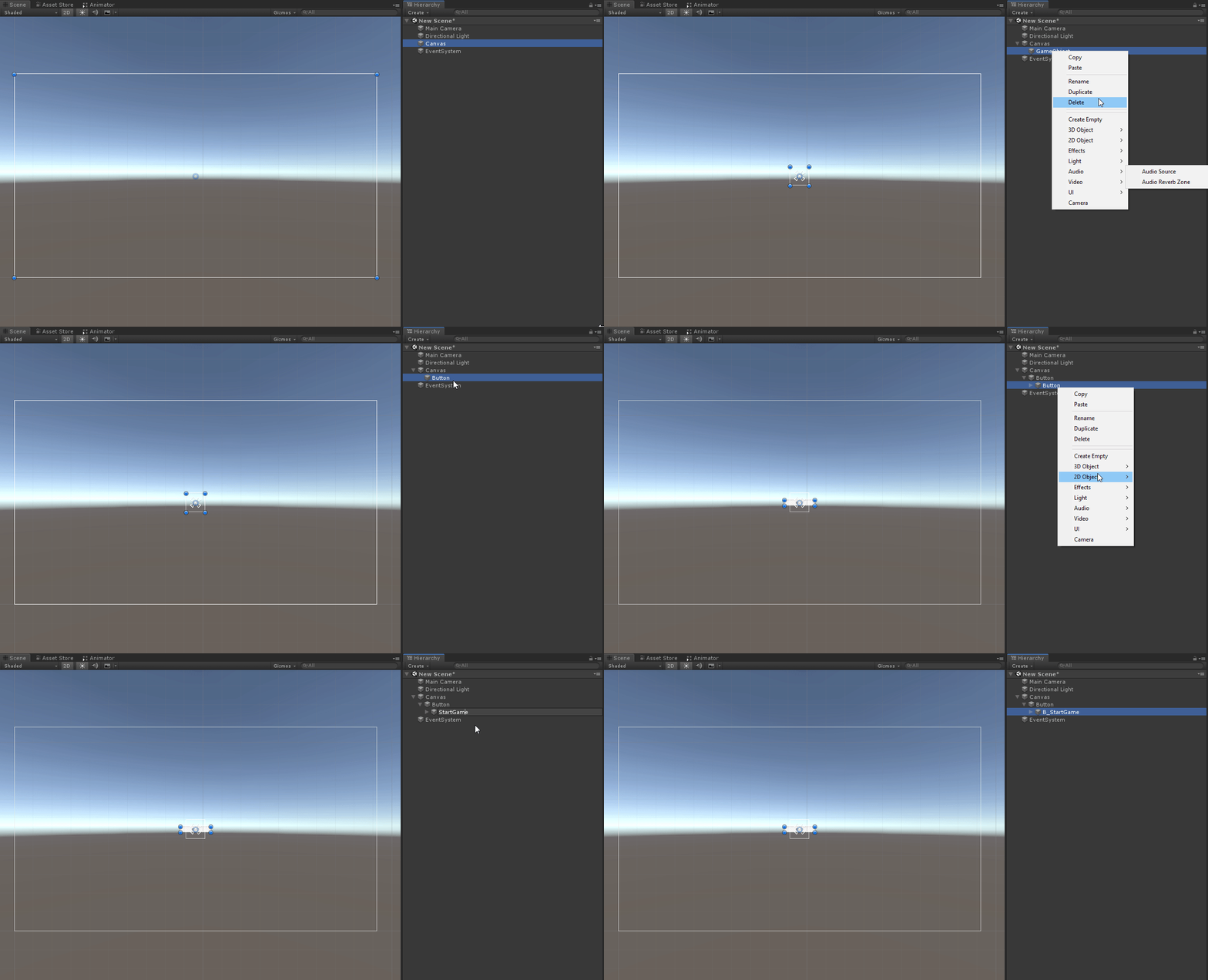
Open up the scene folder right click and create a new scene. Change the mode from 3D to 2D and change the aspect ratio to 1920 x 1080. Create a canvas. Create an empty game object parented to the canvas and parent the button to the empty game object. The reason for this is so when we animate the button we can easily copy and paste the animations in relation to where the empty object is.
 In the Inspector window we can make changes to the button. Change the transitions from colour tint > sprite swap.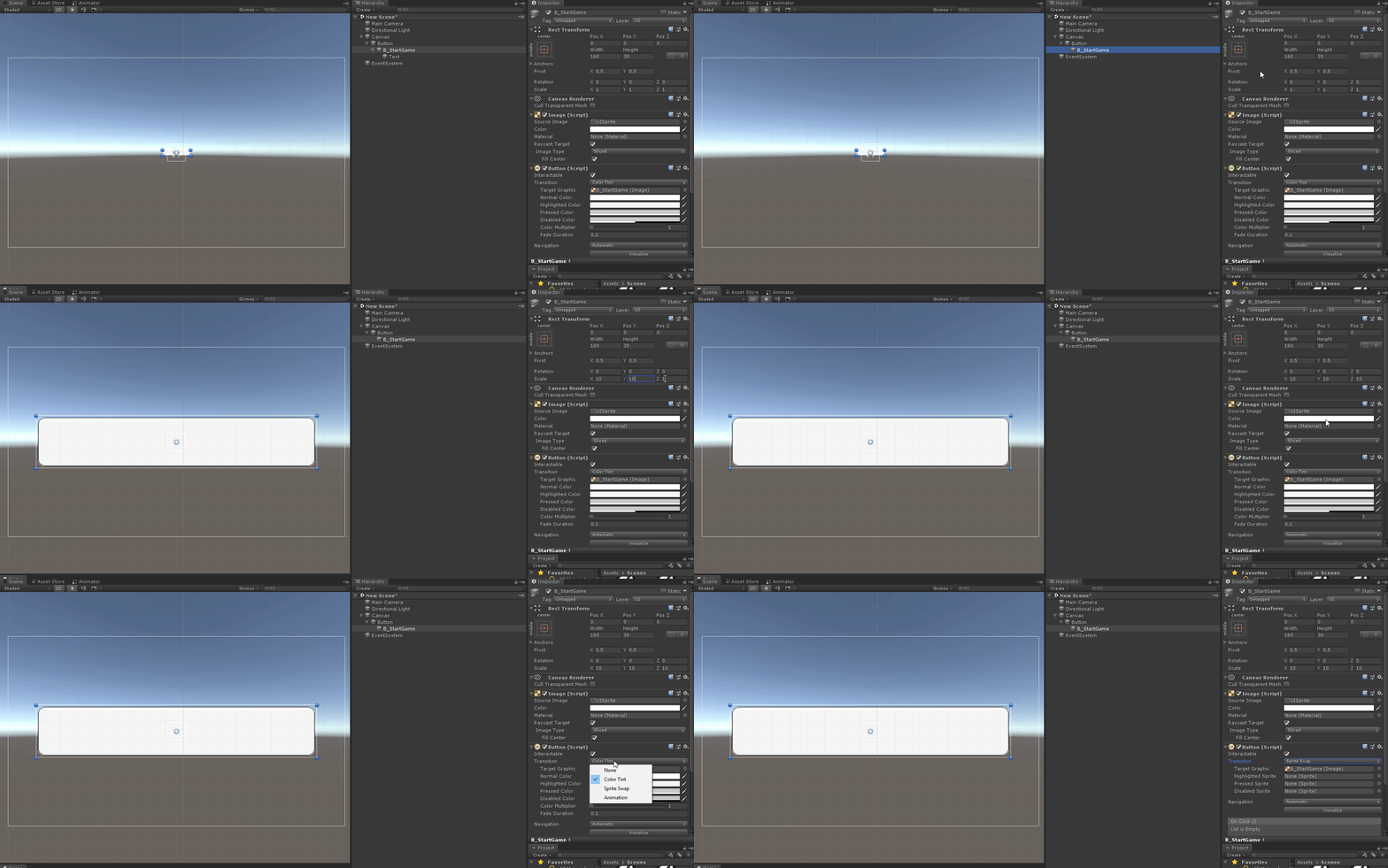
Create the default text or image. Create three versions. One for an idle sprite, mouse hover sprite and a press sprite.
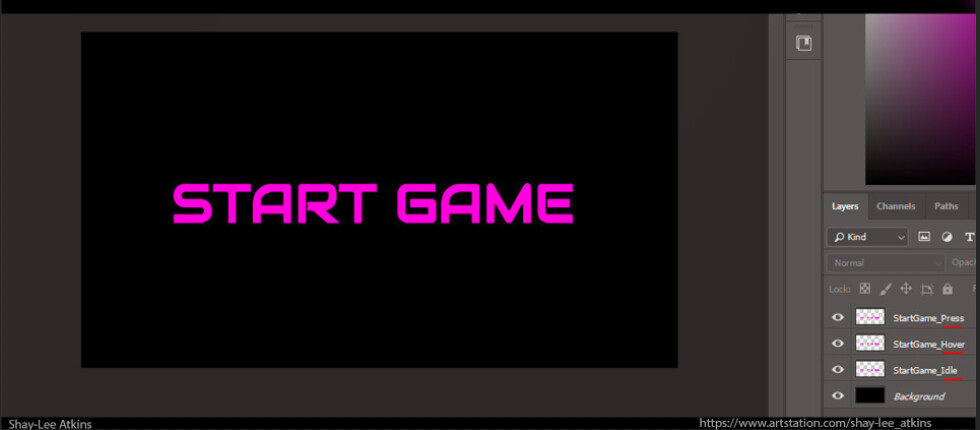
The critical effects are the emboss going up when you are hovering over the button and the emboss going down when pressing the button. You can stack numerous fx ontop of another to get unique results.

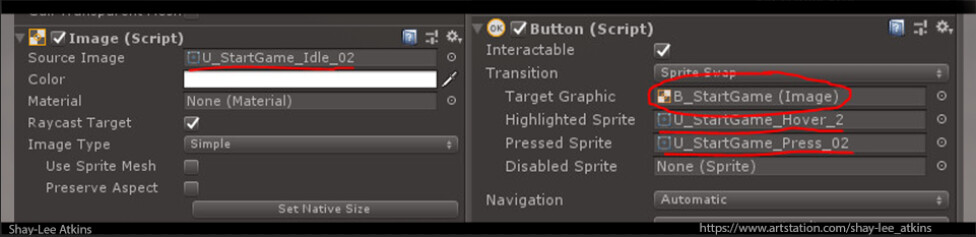
Copy these fx and apply them to any image or text, to have consistent button fx. When exporting out of Photoshop ensure the background is transparent and a png file. Png files wont have transparency until you change the texture type from default to sprite (2D and UI) in unity. Load the idle sprite into the source image, (make sure the alpha is at 100%.) Load the highlight sprite and press sprite where appropriate. The target graphic should be the empty game object created earlier.
In order for the buttons to work nothing can be underneath them in the hierarchy otherwise the buttons wont swap the sprites. Click on the button then windows > animation > animation. In this window create a new anim. file and name it accordingly (should be placed in an animations folder).
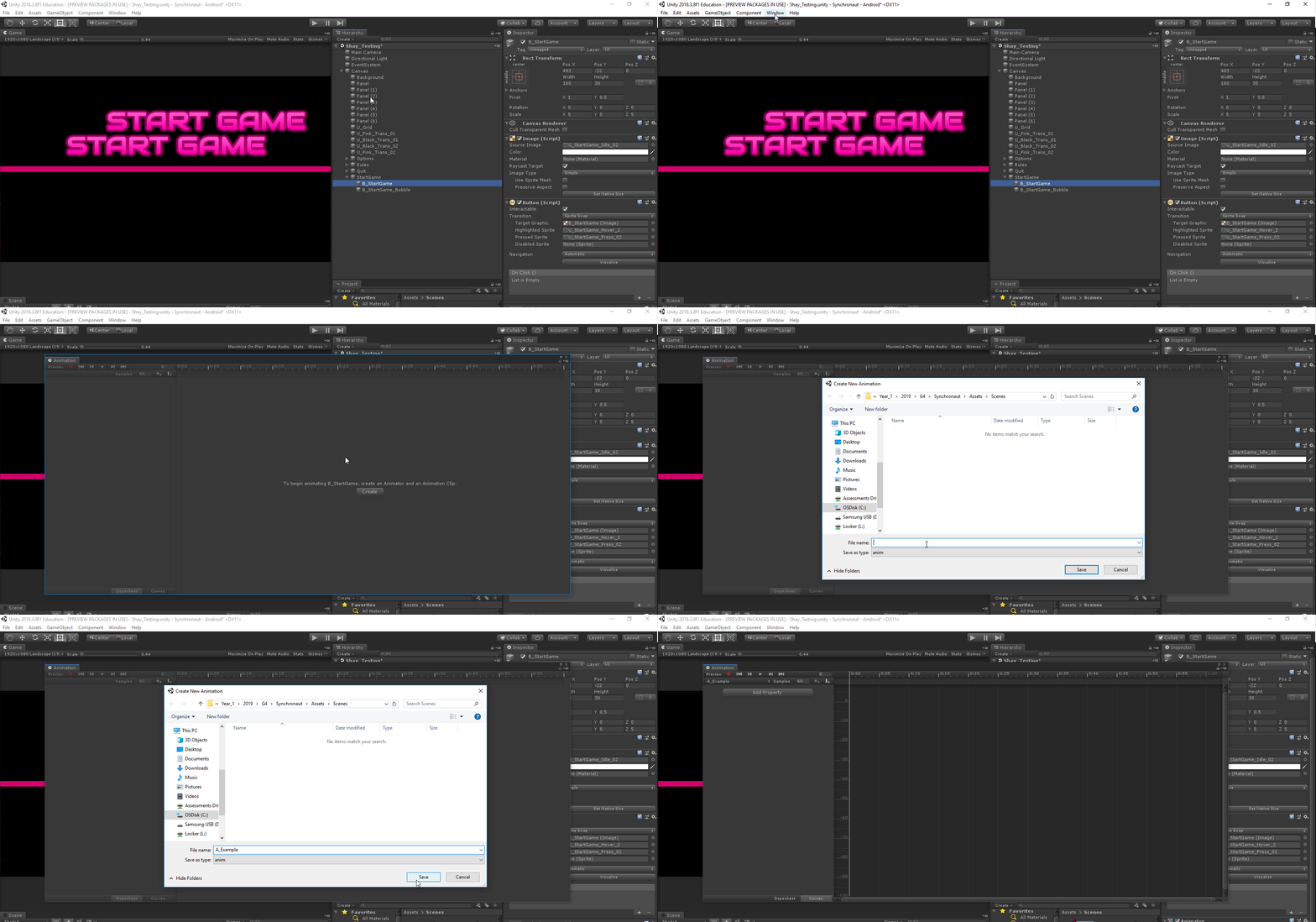
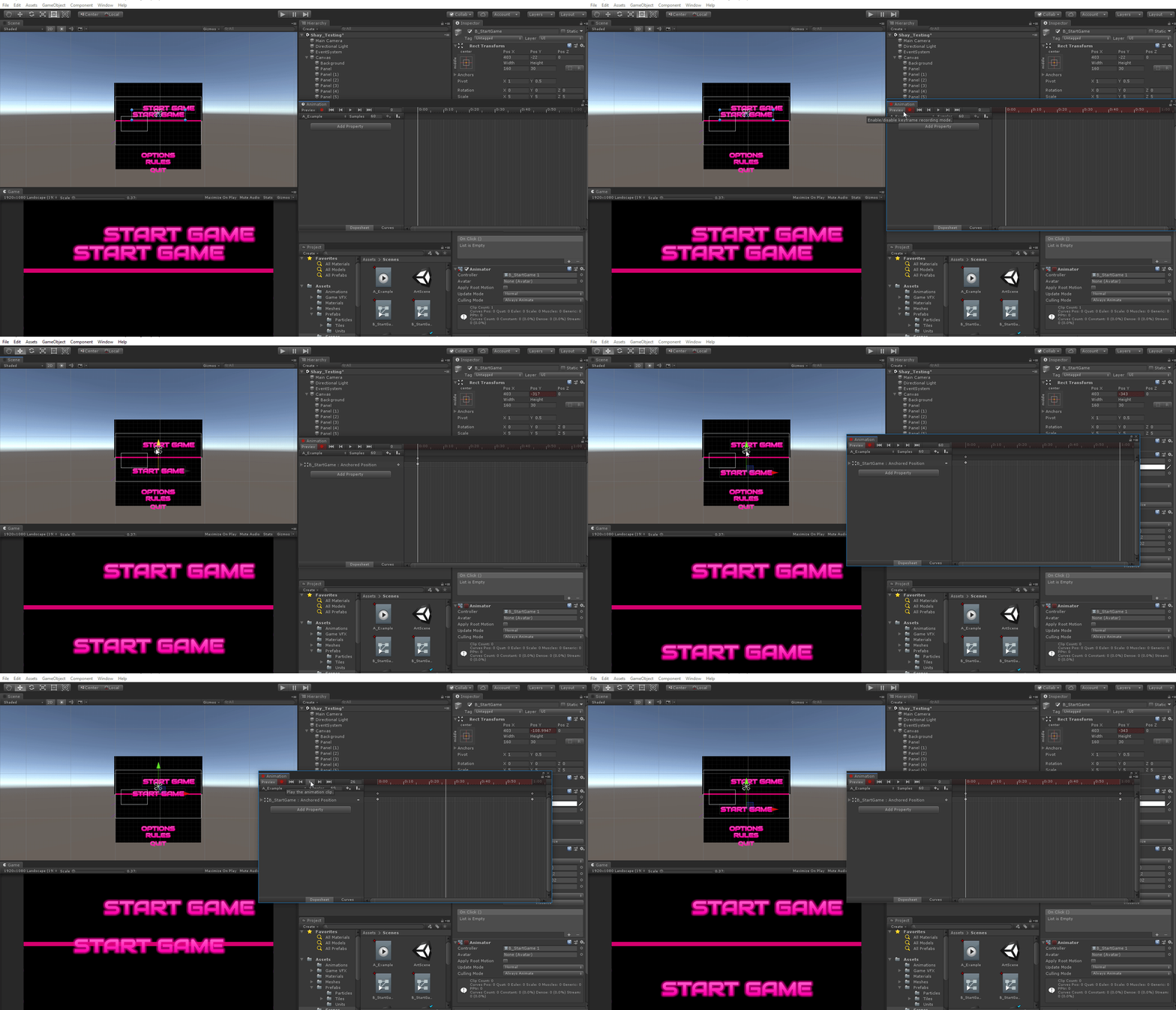
When creating the animation it will automatically add an animator component with a controller which should be the empty object that is parented to the button. To animate simply hit the record button and move the sprite on that frame, change the frame and move it again and it will automatically tween. If you want to have further control of the speed of the tween switch to the curve view. In curves press ctrl+a to select all and f to focus. You can also animate the transparency for fade in and fade outs. Simply do the same steps when animating translate.
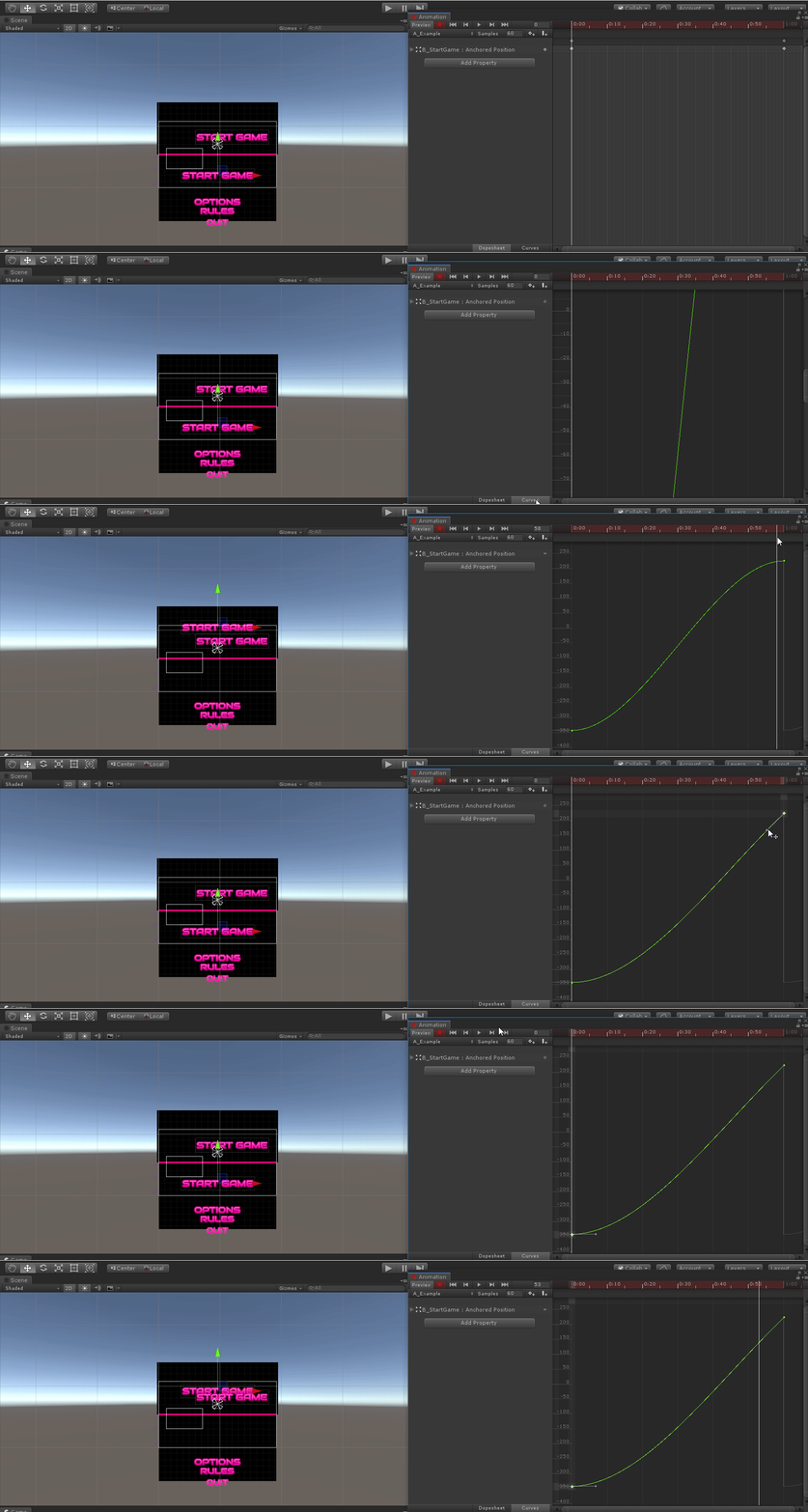
Animations in unity automatically loop, to have the animation only play once open the anim file in your animation folder and uncheck loop time.
